In this article
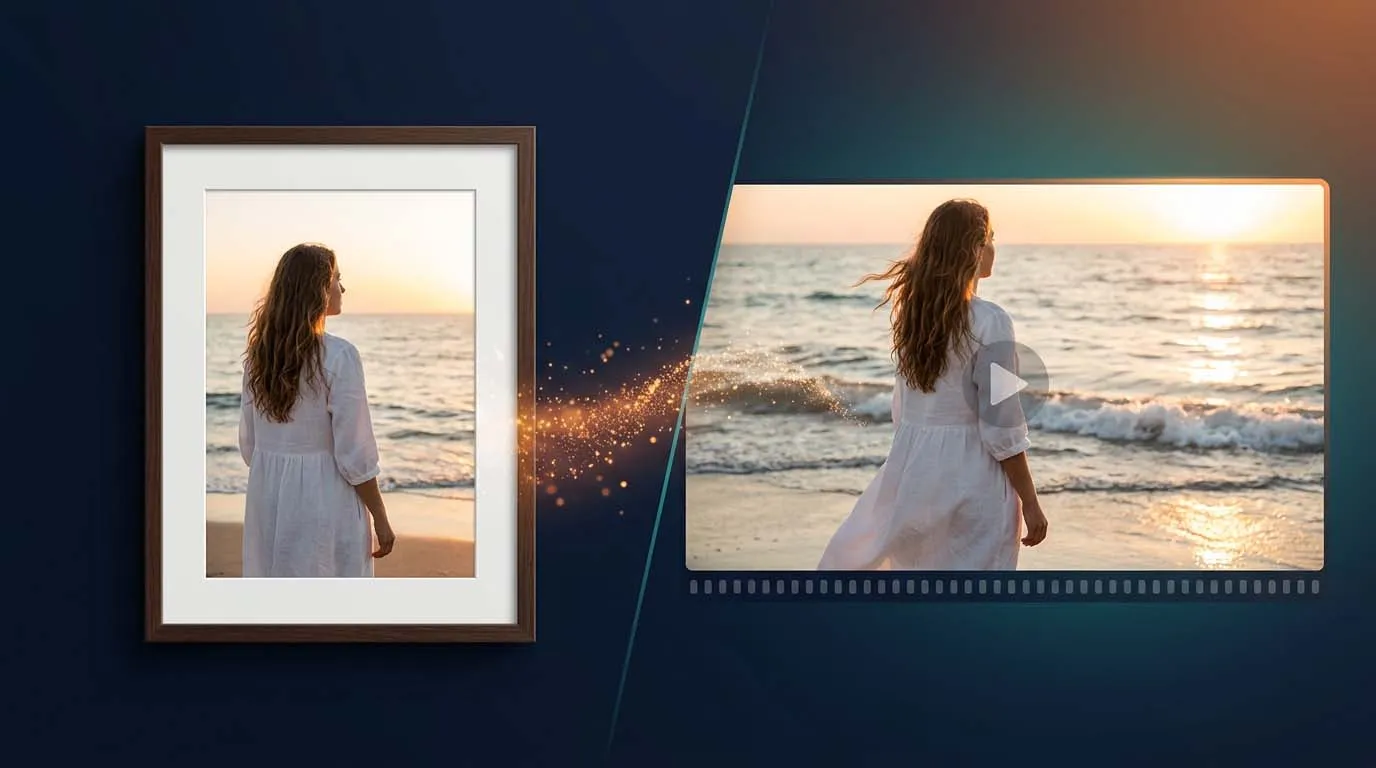
A single photograph can now become a short film clip. Upload a portrait, a product shot or a piece of concept art, describe how it should move, and an AI model produces a few seconds of video in which the hair stirs, the camera glides forward and the light shifts. A couple of years ago this looked like a party trick. In late 2026 it is a normal part of how creators, marketers and small businesses produce social videos, ads and storyboards.
The hard part is no longer finding a tool. It is choosing one, because the field changes every few months and nearly every vendor claims "realistic" results. This guide is based on a review of current product documentation, pricing pages and independent blind-voting leaderboards as of early November 2026. Instead of one long ranked list, it explains what each tool is genuinely good at, where it struggles, and how to get natural-looking motion out of any of them.
Quick Summary: Which Image-to-Video Tool Should You Pick?
| Your main goal | Tools worth a look | Best for |
|---|---|---|
| Cinematic realism with generated sound | Google Flow (Veo 3.1), Kling 3.0 | Short films, storytelling, social clips |
| Natural human movement and characters | Kling 3.0, Seedance 2.0 | Portraits, fashion, AI characters |
| Precise camera and shot control | Runway Gen-4.5 | Filmmakers, agencies, ad teams |
| Product videos that keep logos and shapes intact | Seedance 2.0, Runway, Adobe Firefly | E-commerce, brand content |
| Cheap, fast experiments | Hailuo (MiniMax), Pika, Luma | Testing ideas before spending on premium renders |
| Full control on your own hardware | LTX-2, Wan 2.2, HunyuanVideo | Developers and technical creators |
Note: AI video moves faster than almost any other software category. Models are replaced, credit costs change and plans are renamed, and review sites often quote different prices for the same plan. Treat every price in this article as a rough guide and confirm it on the vendor's own website before you pay.
What Is an AI Image-to-Video Generator?
An image-to-video generator is a model that takes one still picture as its starting point, usually the first frame, and predicts how the scene could move over the next few seconds. You steer it with a short text prompt, and in many tools with extra controls such as camera direction, an end frame or a reference character.
This is different from text-to-video, where the model invents everything from words alone. Starting from an image gives you more predictable results, because the subject, composition, colours and lighting are already fixed. That is why image-to-video is the preferred route for product shots, brand characters and anything where the starting picture must stay recognisable.
Common uses include:
- Social content: turning photos into Reels, Shorts and TikTok clips.
- Product marketing: adding a slow camera move, reflections or steam to a packshot.
- Character work: animating AI-generated characters and illustrations.
- Storyboarding and pitches: making concept art move before committing to a real shoot.
- Real estate and travel: giving still property or destination photos a gentle sense of motion.
- Memory and portrait projects: subtle movement in family or wedding photographs, with the consent of the people involved.
What Changed in 2026 (and Why Older Lists Are Out of Date)
If you read a "best AI video tools" article written last year, several things in it are probably wrong by now.
- Sound arrived. Leading models such as Veo 3.1 and Kling 3.0 can generate synchronised audio, including dialogue and ambience, alongside the picture. Runway's Gen-4.5, by contrast, was reported to output silent video, so you add sound afterwards.
- Clips got longer and more directable. Several tools now offer multi-shot generation, first-frame and last-frame control, and clip extension, so you can build a short sequence instead of one isolated shot.
- Sora is gone. Multiple 2026 industry roundups report that OpenAI announced the discontinuation of Sora in March, closed the consumer apps in April and scheduled the API shutdown for late September. If an article still recommends Sora, it is out of date. Most former users have moved to Veo, Kling or Seedance.
- The leaderboard keeps rotating. On the independent Artificial Analysis video arena, leading positions in image-to-video have changed hands repeatedly this year among models such as Seedance, MiniMax's Hailuo line, Grok Imagine and Google's Gemini Omni Flash. A model ranked first in spring may be third by autumn.
- Labelling rules tightened. Platforms now detect and label AI video themselves. More on that below.
How the Blind-Voting Leaderboards Help (and Where They Mislead)
Marketing pages are not a reliable guide to quality. A better reality check is the Artificial Analysis Video Arena, where people see two videos made from the same input image, do not know which model produced which, and vote for the one they prefer. The votes are turned into Elo ratings, the same method used to rank chess players.
Three cautions apply when you read these rankings:
- Small gaps are not meaningful. The top few models are often separated by only a few points, and the confidence ranges overlap.
- There are separate boards. Rankings differ for image-to-video versus text-to-video, and for results with audio versus without. A model can win one and sit mid-table in another.
- Preference is not the same as suitability. Voters tend to reward striking, cinematic clips. If you need a product to keep exact proportions and a logo to stay legible, the best fit may not be the top-voted model.
Use leaderboards to build a shortlist of two or three tools, then test them yourself with your own image.
Best AI Tools to Turn Images Into Realistic Videos
1. Google Flow (Veo 3.1): Best for Cinematic Realism with Audio
Flow is Google's creative workspace built around its Veo video models. Its Frames to Video mode starts from your image, and reviewers consistently praise Veo 3.1 for physically believable motion, lighting and native audio. Clips are typically about eight seconds per generation, with tools to extend them and to build scenes from several shots. Google has also pushed newer models into the same ecosystem, and its Gemini Omni Flash model has appeared at the top of blind image-to-video rankings without audio.
Pricing and access: Flow has offered a limited number of free daily credits, which is a genuinely useful way to test whether AI video fits your project. Paid access comes through Google AI plans, which start at a low monthly price in the US and rise to premium tiers for heavier use. Credit costs vary by model and clip length, and 4K upscaling has been reserved for the top tier. Developers can also use pay-per-second API pricing.
Good to know: availability and limits depend on your region, account and plan. Videos made with Google's own tools also carry permanent AI labels on YouTube.
2. Kling 3.0: Best for Human Motion and Multi-Shot Storytelling
Kling , from Kuaishou, is a creator favourite for people in motion. Its 3.0 generation arrived in February 2026, with Turbo and Omni upgrades following in the summer. Reviewers highlight convincing body movement, strong character consistency, clips of around fifteen seconds, multi-shot prompting, synchronised audio and, in the Omni model, per-character lip-sync for dialogue scenes. Higher tiers include 4K output options.
Pricing and access: there is a free tier with daily credits, but one 2026 roundup notes that Kling's free-tier output is restricted to personal use. Commercial projects need a paid plan, and credit cost per second rises with quality and resolution.
Good to know: as with every model, hands, fast actions and complex clothing can still glitch, so plan to generate several takes.
3. Runway Gen-4.5: Best for Directors Who Want Control
Runway has long positioned itself as the tool for people who want to direct, not just prompt. Gen-4.5 animates a still image, supports keyframes, and pairs with Runway's video-to-video tools such as Aleph for restyling footage. Camera control is the headline strength, which suits ad agencies and filmmakers who need a specific move, such as a slow orbit around a product.
Pricing and access: Runway is credit based, with paid plans starting at roughly $12 to $15 a month, and Gen-4.5 has been listed at about 12 credits per second, or around twelve cents. A small one-time pool of free credits is offered to new users.
Good to know: sources describe Gen-4.5 as capped at around 720p with no built-in audio and clips of up to ten seconds, so you will likely need to upscale and add sound separately.
4. Seedance 2.0 (ByteDance): Best for Product and Logo Consistency
Seedance, available through ByteDance's Dreamina and a growing list of partner platforms, has repeatedly ranked at or near the top of blind image-to-video voting with audio. Roundups single it out for keeping product shapes and logos consistent and for realistic physics, and it adds natural camera moves even when your prompt does not ask for them. That makes it attractive for e-commerce and brand teams. A newer 2.5 release has also begun appearing on partner platforms.
Good to know: access and pricing differ widely by platform, and higher resolutions can consume credits quickly. ByteDance's services have also faced labelling scrutiny from regulators in China, a reminder to check disclosure rules for your market.
5. Hailuo (MiniMax): Best for Fast, Low-Cost Iteration
Hailuo's 2.3 model is often recommended as the budget-friendly workhorse. It generates short 1080p clips quickly, which makes it handy for testing five or six prompt ideas before paying for a premium render. MiniMax's newer H3 model has also appeared near the top of the Artificial Analysis rankings.
Good to know: free-tier output on Hailuo is restricted to personal use according to one 2026 comparison. Verify the current terms before using clips commercially.
6. Luma (Ray): Best for Reference-Led Camera Moves
Luma's Ray models are known for fluid camera movement and for workflows where a reference image is central. They suit architecture, travel and real-estate visuals, where a smooth glide through a still scene does most of the work.
Good to know: outcomes depend heavily on the complexity of the image and the move you request. Check which Ray version and which plan features are currently available.
7. Pika: Best for Quick Social Effects and Frame-to-Frame Transitions
Pika focuses on speed and creative effects, and it is frequently praised for transitions between a first and a last frame. That makes it useful for scroll-stopping short-form content, morphs and playful animation.
Good to know: it is not always the first choice for strict photorealism or complex human movement.
8. Adobe Firefly: Best for Brand Teams Already in the Adobe Ecosystem
Firefly offers image-to-video inside the same family of tools many designers already use, and Adobe markets its own models around commercially safer training data. The platform also hosts selected partner models, which means one subscription can reach several engines.
Good to know: available models, generation limits and licensing differ between Adobe's own models and partner models, so read the terms for the exact model you choose.
9. Grok Imagine (xAI): Worth Watching
xAI's Grok Imagine video model reached the top of the Artificial Analysis image-to-video arena at points earlier this year. It is a reminder that the ranking order can change quickly and that newer entrants can leapfrog established names.
10. Open-Source Models: LTX-2, Wan 2.2 and HunyuanVideo
If you are technical and want privacy, control and no per-clip fees, open models are now serious options. LTX-2 is reported as the first open model to generate synchronised audio and video together and accepts an image as its first frame. Wan 2.2 and HunyuanVideo are other widely used open options, available through tools such as ComfyUI.
The trade-off: these models are demanding. Many need a powerful GPU with 24 GB or more of memory, and some video models are designed for data-centre cards. You also take responsibility for licensing and safety. For most creators, a hosted tool is simpler.
Quick Comparison Table
| Tool | Standout strength | Watch out for |
|---|---|---|
| Google Flow (Veo 3.1) | Realistic physics, lighting and native audio | Credits and limits vary by plan and region |
| Kling 3.0 | Human motion, longer clips, multi-shot | Free tier is personal use only |
| Runway Gen-4.5 | Camera control, keyframes, editing tools | Lower resolution ceiling, no built-in audio |
| Seedance 2.0 | Product and logo consistency, physics | Access and pricing differ by platform |
| Hailuo (MiniMax) | Fast and affordable iteration | Terms for free-tier output |
| Luma (Ray) | Smooth cinematic camera moves | Results vary with image complexity |
| Pika | Quick effects and transitions | Less suited to strict photorealism |
| Adobe Firefly | Adobe workflow and brand-safe positioning | Terms differ between Adobe and partner models |
| Open-source (LTX-2, Wan, Hunyuan) | Privacy, control, no per-clip fee | Heavy hardware and technical setup |
Our suggested approach: shortlist two or three tools from the table, run the same image and prompt through each, and compare. A common professional pattern is to use a cheap, fast model for rough experiments, then spend premium credits only on the final version of each shot.
How to Turn an Image Into a Realistic Video: Step by Step
Step 1: Prepare the Right Image
The starting image decides most of the result. Choose a sharp picture with good lighting, a clear subject and room for that subject to move. Match the image's aspect ratio to your target platform, such as 9:16 for Reels and Shorts or 16:9 for YouTube, so the tool does not have to invent missing edges. Avoid heavy compression, text-heavy graphics and faces that are partly hidden.
Step 2: Decide What Should Move
Before you write anything, decide on one main action and one camera move. A portrait might have a slow turn of the head and a gentle push-in. A landscape might have drifting clouds and a slow forward glide. Restricting yourself to a small number of movements is the single most effective way to look realistic.
Step 3: Write a Motion Prompt
Do not re-describe the picture. The model can already see it. Describe what changes. A reliable structure is:
- Subject action: what the person or object does.
- Environment motion: wind, water, traffic, light, steam.
- Camera: push-in, pan, orbit, handheld, static.
- Constraints: what must not change, such as the face, clothing, product shape or logo.
Step 4: Generate a Short Test First
Start with the shortest, cheapest setting. Check whether the face holds together, whether limbs bend naturally, and whether the background stays stable. Only when the motion looks right should you re-render at higher quality or longer duration.
Step 5: Refine, Extend or Stitch
Adjust one thing at a time, such as the camera speed or the action, so you learn what is causing each change. If your tool supports it, use an end frame to pin down where the shot finishes, or extend the clip. Longer sequences are best built by joining several short, strong shots in a video editor.
Step 6: Finish in an Editor
Add music, sound effects, voiceover and captions. If your tool outputs low resolution, use an upscaler. Export in the format your platform prefers and keep the original image, prompt and settings so you can reproduce a shot later.
Prompt Examples That Work as Starting Points
Adapt these to your own images. Different models respond differently, so treat them as templates, not guarantees.
- Portrait: "She glances toward the camera and gives a small, natural smile. A light breeze moves a few strands of hair. Slow, gentle push-in. Keep her face, hairstyle and clothing exactly as in the image."
- Product: "Slow orbit around the bottle on a clean studio surface. Soft highlights glide across the glass. The label, shape and colours stay unchanged."
- Landscape: "Clouds drift slowly across the sky, grass sways in a light wind, and warm sunlight shifts across the hills. Smooth forward glide."
- Food: "Steam rises from the bowl, a spoon lifts slowly out of frame, and the camera makes a slight downward tilt. Warm, natural light."
- Real estate: "Smooth, steady dolly-in through the open door toward the living room. Curtains move slightly. No people. Lighting remains constant."
- Illustration or character art: "The character takes one slow breath, blinks, and turns slightly toward the light. Soft particles float in the background. Keep the painted art style."
Tips for More Realistic Results
- Keep actions simple. One primary movement beats a list of five. Complex choreography is where faces and hands start to break.
- Use slow, specific camera language. "Slow push-in" or "steady orbit" works better than vague words like "dynamic."
- State what must stay the same. Naming the face, product shape or logo as unchanged helps many models.
- Choose images where the pose suits the motion. A person already mid-stride is easier to animate walking than one standing with arms crossed.
- Prefer clean backgrounds for products. Busy scenes give the model more to distort.
- Generate several takes. Even with identical settings, results vary. Budget for retries.
- Calculate cost per usable second. If only one in four clips is usable, your real price is four times the advertised rate.
- Add sound in post. Even a simple ambient track and a few effects make AI clips feel dramatically more real.
Common Problems and How to Fix Them
| Problem | Likely fix |
|---|---|
| The face drifts or changes mid-clip | Use a sharper, front-facing image, simplify the action, and try a model with stronger character consistency |
| Hands or fingers look distorted | Avoid close-ups of complex hand actions and choose an image where hands are clearly visible or out of frame |
| Product shape or logo warps | Use minimal movement, a slow camera, and a prompt that says the product stays unchanged |
| The background morphs or flickers | Request subtle environmental motion rather than big scene changes, and shorten the clip |
| Movement looks floaty or slow motion | Describe a natural pace explicitly and avoid overloading the prompt with adjectives |
| The camera moves too aggressively | Specify direction and speed, such as "very slow push-in" |
| Output looks soft or low resolution | Start from a higher-quality image and use an upscaler after generation |
Consent, Copyright and Labelling: What to Check Before You Publish
Realistic video from a photo brings real responsibilities. Rules vary by country and platform, so this section is general guidance, not legal advice.
- Get permission for people. Only animate photographs of people when you have their consent, or when you own the rights and the use is clearly appropriate. Animating someone's face without permission can breach platform rules and, in many places, privacy and publicity laws.
- Respect copyright. Make sure you have the right to use the original image, especially if it came from a stock site, a client or someone else's artwork.
- Check commercial rights. Free tiers on several tools are limited to personal use. Confirm the licence for the exact plan and model before running ads or selling the output.
- Expect platform labels. YouTube announced in May 2026 that it would automatically detect and label significant photorealistic AI-generated video even when creators do not disclose it, and videos made with its own AI tools, such as Veo, carry permanent labels. Meta and TikTok also use content-credential signals and require disclosure of realistic AI content.
- Know the wider rules. Reports indicate that the EU AI Act's transparency obligations for AI-generated content have applied since August 2026. If you publish to EU audiences, check what applies to you.
- Do not deceive. Never present synthetic footage as real news, a real testimonial or evidence. Audiences are increasingly suspicious, and trust is hard to win back.
How to Choose the Right Tool
- Start with the output you need. A talking character, a product spin and a landscape glide each favour different tools.
- Decide whether you need audio. If you want dialogue or ambience generated for you, narrow the list to models with native sound.
- Test with your own image. Demo clips are chosen to impress. Your photo may behave differently.
- Estimate your monthly volume. Count how many usable seconds you need and compare against credit costs, including retries.
- Check licensing. Free tier, personal plan and commercial plan often have very different rights.
- Avoid overlapping subscriptions. Many platforms bundle several models, which can replace multiple separate plans.
Three Sample Workflows
- Beginner or hobbyist: use a free daily-credit tier to test one or two images, learn what simple prompts do, and stay within personal-use rules.
- Creator or small business: prototype ideas on a fast, low-cost model, then render the final version of each shot on Veo, Kling or Seedance, and finish in a standard video editor.
- Agency or brand team: generate stills first, lock the visual style, animate with a control-focused tool such as Runway, keep a consent and licensing checklist, and apply platform disclosure labels before publishing.
Final Thoughts
Image-to-video AI has moved from novelty to everyday tool, but the best results still depend on three things you control: a strong starting image, a restrained and specific motion prompt, and an honest review of every output. Because the leaderboard changes so quickly, avoid long commitments and keep testing current versions rather than trusting a ranking from six months ago.
The simplest way to decide is to take one image you care about and run it through two or three of the tools above with the same prompt. The difference you see will tell you more than any ranking.
Looking for more AI tools? Explore Toolkitly to discover tools for video creation, image generation, content creation, productivity and more.
Sources and Further Reading
Frequently asked questions
What is the best AI tool to turn images into realistic videos?
There is no single winner. Google Flow with Veo 3.1 is widely praised for cinematic realism and built-in audio, Kling 3.0 for human motion and multi-shot storytelling, Runway Gen-4.5 for camera control, and Seedance 2.0 for product and logo consistency. The leaderboards also change often, so test two or three tools with your own image.
Can I turn a normal photograph into a realistic video with AI?
Yes. Upload a clear photo to an image-to-video tool, describe the movement you want and generate a short clip. Results depend on the quality of the image, the model and your prompt. Simple actions and slow camera moves usually look the most natural.
Are there free AI tools to turn images into videos?
Some tools offer free daily or one-time credits. Google Flow and Kling have offered limited free access, for example. Free tiers usually come with limits such as lower resolution, watermarks or personal-use-only terms, so check the licence before using clips commercially.
Can I use AI-generated videos for commercial work?
It depends on the tool, plan and model. Many free tiers restrict output to personal use, while paid plans usually grant commercial rights. Always read the licence for your exact plan, and make sure you have the rights to the original image and consent from any person shown.
What happened to OpenAI's Sora?
According to several 2026 industry roundups, OpenAI announced the discontinuation of Sora in March, closed its consumer apps in April and scheduled the API shutdown for late September. Many former users have moved to Google Veo, Kling or Seedance. Check OpenAI's own announcements for the latest details.
How do I write a good prompt for image-to-video?
Describe what changes, not what is already visible. A reliable structure is subject action, environment motion, camera movement and constraints, such as keeping the face or logo unchanged. Keep to one or two simple movements and use slow, specific camera language like "slow push-in."
Why does the face or product change shape during the video?
AI models predict each frame, so details can drift, especially with fast or complex movement. Use a sharp, front-facing image, simplify the action, shorten the clip, state that the face or product must remain unchanged, and try a model known for consistency.
Do image-to-video tools generate sound?
Some do. Veo 3.1 and Kling 3.0 can generate synchronised audio, while others, such as Runway Gen-4.5, have been reported to produce silent video, so you add sound in an editor. Capabilities change quickly, so confirm in the tool's current documentation.
Can I run image-to-video models on my own computer?
Yes, with open models such as LTX-2, Wan 2.2 and HunyuanVideo, usually through tools like ComfyUI. They typically need a powerful GPU, and some require data-centre hardware. You also handle licensing and safety yourself, so hosted tools are easier for most people.
Is it legal to animate a photo of someone with AI?
You should only animate photos of people with their consent, or when you clearly own the rights and the use is appropriate. Animating someone's likeness without permission can breach platform rules and, in many places, privacy or publicity laws. This is general information, not legal advice.
Get posts in your inbox
One email a week — new guides, comparisons and the AI tool news actually worth reading.
✓ You're subscribed — check your inbox to confirm.