In this article
Remote work has become the modern-day reality in the aftermath of the Covid 2020 pandemic. Coupled with increasing digitalization, an increasing number of users are seeking efficient document management tools, such as PDF Editors. A massive surge is expected in the global PDF editor market, which is projected to surpass the $3.14 billion mark by 2025. Whether you are a professional, student, or someone who has to deal with digital documents every day, having a reliable PDF editor in your arsenal can be of great help. Today, we are going to discuss SwifDoo PDF in detail, which has already gained a large user base due to its dynamic functionalities.
About SwifDoo PDF For Windows
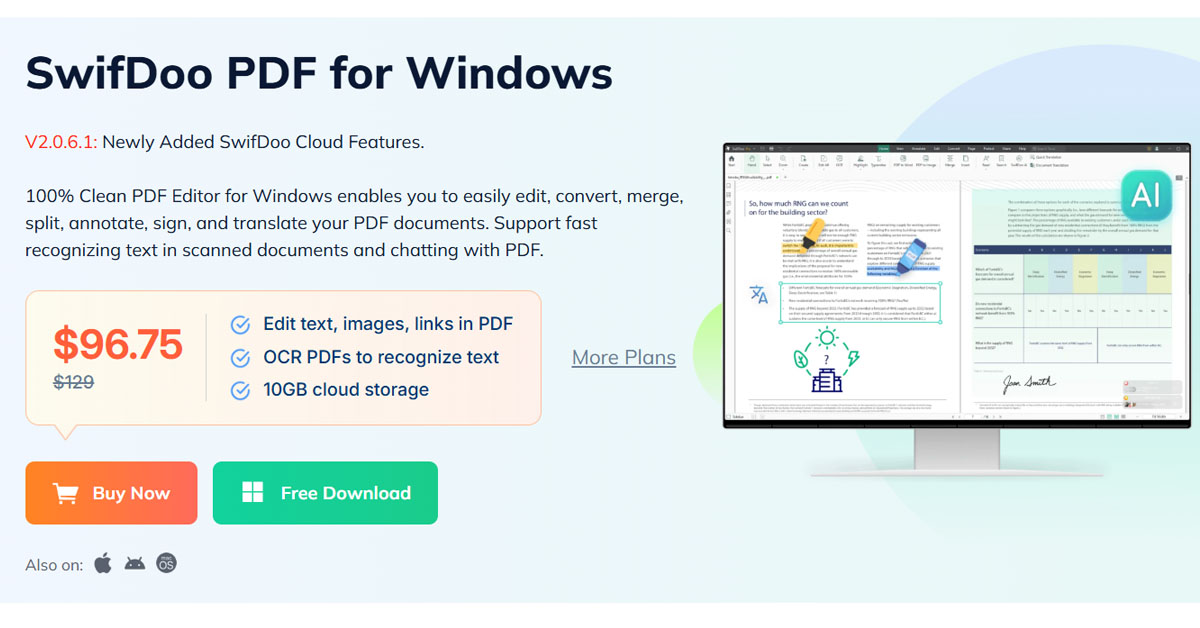
SwiftDoo PDF is the answer to all your PDF management woes. It offers multiple functions, including converting, merging, annotating, comparing, organizing, and more. A user-friendly interface makes it ideal for users of varying skill levels. Windows users can manage their PDFs more effectively and cost-efficiently using SwifDoo PDF. Apart from its basic functions, it offers advanced document management features by leveraging ChatGPT techniques. Keep reading to learn more about its key attributes:
What Makes SwifDoo Stand Out From Its Peers
1. Create, Open and Read PDF
This is the foremost feature of SwifDoo PDF, where you can both open and create PDFs using images, blank pages, CAD, scans, and HEIC as sources.
2. Edit and Add Notes To PDF
Are you searching for ways to edit your PDF? SwifDoo PDF can help you do that easily to amplify your productivity. You can insert text, highlight important parts, and mark up to make the most out of it.
3. Split or Merge PDF
Want to create an illustrative PDF with multiple images? Try out SwifDoo PDF, which allows you to merge multiple PDF files or images in the desired order. There is also an option to make multiple PDFs by splitting one.
4. Compress PDF
SwifDoo helps compress PDFs to our desired image quality and compression level. This is ideal for reducing the size of your PDF file.
5. PDF Conversion
Converting your PDF file to other formats, such as PDF to DWG , DOC ( PDF to Word ), JPG, EPUB, and HEIC, can make the document more accessible and compatible with different devices. You can easily convert your PDF to multiple formats and vice versa.
6. Add or Remove Watermar
You can now add a professional flair to your creations by adding a watermark to your PDF creations using SwifDoo PDF. There is also an option to remove watermarks from existing documents. SwifDoo PDF accepts text, image, and custom watermarks.
7. Sign Or Encrypt PDF
If you want to safeguard your PDF files from unauthorized access, then SwifDoo PDF can help protect them by giving passwords. This can offer you peace of mind as you won’t have to worry about your PDFs being copied, opened, edited, or printed
by others without your permission. Users can also add a personal touch to the PDFs by uploading or handwriting signatures.
8. Take Print Outs Of PDFs
Printing a PDF booklet becomes easy with SwifDoo PDF, which allows printing double-sided PDFs. There is an option to print the PDFs in grayscale after adding more comments.
9. Add Images, Pages and Links
Are you creating a long PDF with multiple pages? SwifDoo PDF makes it easy to access other sections by adding links to other files, pages, webpages, or images.
10. AI Tech In PDF Processing
Want to know everything about lengthy content within seconds? SwifDoo PDF can help you with the same courtesy of the AI-powered tech. It can summarize lengthy documents for translating, explaining, proofreading, and even rewriting a PDF very quickly. Users can engage with the built-in AI chatbot of SwifDoo PDF, which leverages the latest ChatGPT 4.0 to process their PDFs.
11. PDF Translation
SwifDoo PDF can translate words, phrases, and entire sentences in real-time while you view the PDFs. You won’t have to worry about the formatting getting distorted while you translate the PDF. SwifDoo PDF also preserves the original layout as you translate the PDF to more than 100 languages at top-notch speed and accuracy.
12. Text Recognition
SwifDoo PDF features powerful OCR capabilities that enable the recognition and extraction of text from image-based and scanned PDF documents. This helps make the text both searchable and editable. There is also an option to convert the scanned PDFs and images to other editable formats.
13. Batch Processing
You can save time by batch converting PDFs to various other formats or compressing them without quality loss.
System Specification For Running SwifDoo PDF On Windows
| Requirement | Specification |
|---|---|
| Operating System | Windows 7, 8, 10, or 11 |
| Memory (RAM) | 1 GB RAM |
| Storage | 150 MB free space |
| Processor | 1 GHz or faster |
Pricing of SwifDoo PDF
SwifDoo PDF comes with a price tag. However, there is also a limited free trial to check out its functionalities before making a purchase. During the one–week free trial, you can try out its varied features. On completion of the trial phase, you can use SwifDoo PDF for reading PDFs only. However, you will need to subscribe to the paid plan for editing, compressing, converting, annotating, and other features.
Let’s take a look at the pricing of its different plans:
- The Quarterly Plan costs $16/month for 1 device.
- The 2-Year Plan costs $2.88/month on 2 devices.
- The Perpetual License requires a one-time payment of $96.75 for one device, including lifetime free support and updates.
Now that we have gained knowledge about the PDF tool and its pricing, let’s delve into the detailed steps involved in using it for Windows.
Step-By-Step Guide to Use SwifDoo PDF on Windows Devices
Step 1: Navigate to the SwifDoo website and install the SwifDoo PDF app on your Windows device.
Step 2: After installation, locate the top toolbar, which contains various tools for functions such as editing, merging, annotating, and more. If you wish to edit, then choose “Edit” from the top toolbar.
Step 3: If you wish to edit existing images and texts, then click on the “Edit All” option. Here you can add images, texts, links, and more. This can be done by clicking on “Insert Text”, “Add Image”, or “Insert Link.”
Step 4: Ultimately, save the changes. Now you can either share the document or print it when done.
User Reviews on SwifDoo PDF for Windows
The market is filled with countless PDF editors. This makes taking the final call a tough one. But to make things easier, we have compiled the customer ratings of SwifDoo on various platforms:
| Platform | Rating | Number of Reviews |
|---|---|---|
| Capterra | 3.6/5 | 5 |
| Software Advice | 3.6/5 | 5 |
| Trustpilot | 4.1/5 | 99 |
Keep reading to learn about what users like the most and dislike about SwifDoo PDF:
Thumbs Up
- The interface is easy to navigate and use.
- It fosters fast editing and conversion of PDFs.
- It is comparatively more cost-effective than Adobe Acrobat DC.
- The white-out feature redacts sensitive text by blocking it in your preferred color choice.
- You won’t have to deal with obtrusive advertisements while using SwifDoo PDF.
Thumbs Down
- The free version's features are extremely limited.
- It lacks adequate customization features in its interface.
- Users often complain of lag when processing large files.
Brief Comparison of SwifDoo PDF with Its Leading Competitors
| Criteria | SwifDoo PDF | Adobe Acrobat Pro DC | Foxit PDF Editor |
|---|---|---|---|
| Platform Support | Windows | Windows, macOS, iOS, Android | Windows, macOS, Linux, iOS, Android |
| User Interface | Highly user friendly | Professional tool with a complex interface | User friendly |
| Processing Speed | Very fast | Moderate | Fast |
| System Requirement | Can run on low-end PCs | Requires highly powerful hardware | Has moderate system requirements |
| Software Updates | Frequent and non-disruptive | Very large updates that might slow down your system | Regular updates |
Conclusion
Whether you are a novice or a seasoned user, SwifDoo PDF can serve as your one-stop solution for all your PDF-related needs. It comes with all the essential tools required for PDF management, without the complexity of other higher-priced tools. You can opt for its trial variant today to learn more about what it has to offer.
Frequently asked questions
Should I be worried about data security while using SwifDoo PDF?
No, you don’t have to worry about data security as SwifDoo PDF processes both documents and images in the local storage of your device. SwifDoo PDF doesn’t store sensitive user data, such as account information, making the entire process highly secure.
Does SwifDoo PDF have any AI-backed features?
Yes, SwifDoo PDF relies heavily on advanced AI to help users quickly translate, summarize, rewrite, and explain PDF content without requiring manual effort. It uses GPT 4.0 to enhance efficiency while analysing a document.
Can you insert and edit images in SwifDoo PDF?
Yes, you can insert, adjust, and even edit images while using SwifDoo PDF. This can make your PDFs more visually appealing and can be a great help for students and marketers creating presentations.
Get posts in your inbox
One email a week — new guides, comparisons and the AI tool news actually worth reading.
✓ You're subscribed — check your inbox to confirm.